Showing posts with label App Happy Wednesday. Show all posts

Wednesday, 7 January 2015

Create a Frosty Window-effect with Classic Vintage Photo Editor


Classic Vintage Photo Editor is one of my favourite mobile photo applications in creating silky and frosty effects to my iPhone photos. I will here show you can create a Frosty Window effect using Classic Vintage Photo Editor and Image Blender iPhone applications.

This is the original image, which I have taken with iPhone 5S, using the external Olloclip macro lens, that I attached to my iPhone for taking this close-up photo.


Tutorial: 9 Steps to Create a frosty Window-Effect

Open the photo you wish to edit in the Classic Vintage Photo Editor. You will see that the app will automatically apply random effect layers on your photo - You need to start with setting the effect of these layers to 0% opacity: 

1. As shown below, choose the Sepia effect, and adjust it to 0% opacity.


2. Then, in the same way, choose the Border effect, and adjust it to 0% opacity.

3. Now choose the Crackle effect, and choose the Nevada layer from the right (shown below - number 8 from the top), and adjust the opacity of the layer to 50%. 
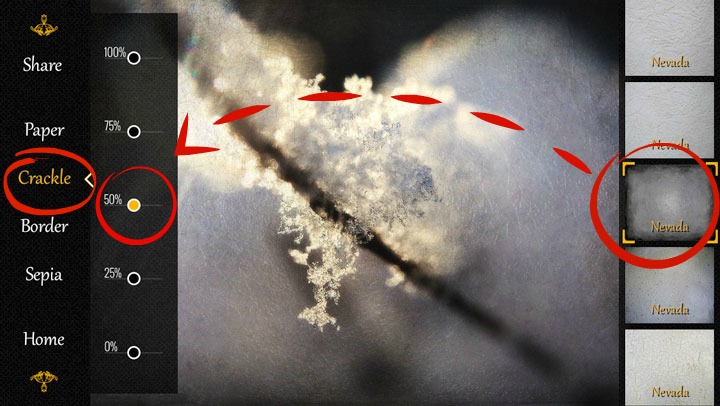


4. Do the same with the Paper layer - Choose the Nevada-effect shown to the right, that is, number 2 from the top, and set it also to 50% opacity. 


5. That was easy, wasn't it! Now you have finished editing your photo in the Classic Vintage Photo app, and it is time to save the photo on your camera roll: 
Choose Share, and photo library - now your image is saved in the camera roll of your iPhone.


I wanted to remove the frosty effect from the middle of my photo - to get the sharpness and clarity of my original image to the center point - and I used Image Blender app for this. 

So from now on, we proceed in the Image Blender app:

6. Open first your original image in the Image Blender app, by clicking the icon in the lower left corner - your camera roll opens, and you can now choose your original image.


7. Then click the lower right icon, and choose the Frosty Window from your camera roll.


8. Choose the Mask option, and remove the Frosty Window effect from the desired area of your photo. Click the Save option in the upper right order. 


9. Then set the opacity continuum all the way to the right, so you can see the Frosty Effect photo, now with a clear and sharp (your original image) being visible in the middle - and save your image to your camera roll.


And, that's it - 9 easy steps to create a beautiful, winter image ... Like looking through a Frosty Window. This is my favourite combination at the moment in Classic Vintage Photo Editor.


What are your favourite apps at the moment? 

Come and link your recent mobile photos to App Happy Wednesday hosted by Barb at Keeping With The Times.

... With App-Happy greetings,
Nina


Classic Vintage Photo Editor is at the moment free in the App Store. Image Blender is available in App Store for $ 2,99. 


Tuesday, 21 October 2014

A Rainy Day at Tivoli Gardens through the Old Camera App


We had the pleasure of having my dear mom visiting us during the Fall Break. The Tivoli Gardens is beautifully decorated during the Harvest Market - Halloween season, and we spend a lovely afternoon - with our umbrellas - in Tivoli. 

These photos are taken with my iPhone, using the Old Camera Application. I chose the Kallitype Mode, out of 6 different black and white options in the Old Camera. I like the soft, grey tones and the strong vignette effect in the Kallitype mode. The Old Camera does really add a touch of vintage to the photos ... and a silver lining to a rainy day. 

I love especially the portrait of my mom in the cafe - the light falls softly to her beautiful face, capturing the dreamy look in her eyes. 
Another favourite of mine is the 2nd picture, where mom is standing in the mist with her umbrella.

Should I mention one disadvantage in the Old Camera App, it would be the fact that the app does resize the photos to a size around 200 - 250 KB. Since I want to use these photos in a photobook, I used the Filterstorm App to upsize them to around 3000 KB. 

We said farewell to my mom yesterday - She has had a safe trip and is back at home now. We're thankful and so happy for the moments spend together ... Looking forward for Christmas when we'll meet again!


With Rainy Day Greetings,
Nina

Sharing with 


Tuesday, 23 September 2014

Hiding ...


Hipstamatic App: Vincent lens and Robusta film.

Hipstamatic App:Vincent lens and Robusta film.

 - Such a cozy hiding place, ain't it?!

I'd love to hang a hammock under those branches, just above the water, close my eyes and just enjoy the fresh scent of autumn ... 

What do you daydream about?


Happy mid-week greetings,

Nina

sharing with


Wednesday, 10 September 2014

Tangled FX [App Happy Wednesday]


I spotted this pretty flower as I was walking in the neighbourhood. I fell for the round, high top of the flower - and the orange - green color-combination. I wanted to highlight the sharp structure of the flower top, and chose therefore to edit the photo in Tangled Fx.

Tangled Fx is a creative painterly app. It has 16 different painterly effects, from "Brush Strokes" (which I have used in the photo above) to Fibers, Swirls, Bloom and so forth. Tangled Fz allows you to adjust the strenght of the chosen effect, together with the color boost, contrast, gamma and hue shift.


I edited the photo making the following changes:
  1.  I used Camera+ -app to take the picture with. 
  2. I adjusted the brightness, contrast, warmth and ambiance in Snapseed-app. 
  3. Masking the flower in TadaaSLR-app, I created a blurry background with a bokeh-effect. 
  4. I used Mextures-app to add warm sunlight in the background. 
  5. In Tangled Fx-app I selected the Brush Strokes-effect - that highlights the flower top and also the grass  and leaves, creating a delicate painterly look. 
  6. Finally, I took the photo to PhotoToaster-app, where I chose the White Brush-frames to the photo.

What is your favorite creative photo-app at the moment? 
Share your photos and thoughts at Barb's App Happy Wednesday:


Keeping With The Times

Until next time,

Nina

Wednesday, 23 July 2014

Summerfeet - Retromatic 2.0 App


Summer feet are happy feet - they're out and about in the grass, on the sand and in the water! It has been warm and sunny - yet the mild breeze makes the temperature feel nice and not too hot.

I found this creative and handy Retromatic 2.0 App the other day, it is available free at the moment in App Store. You can make cool posters and cards with it, all in one app:
  • You start by selecting a photo, you would like to use.Then you mask the object you wish to include to your poster, and choose a background for it. 
  • You can add nice patterns, insignias and marks in different colours, and also write a text of your choice as well.  There is plenty of fonts to choose from - they look very similar to the fonts in Phonto App
  • Afterwards you can save the image on your camera roll, or post it directly to Instagram, facebook and Path On.

I have had some creative moments with Retromatic 2.0 App, making holiday greetings and birthday cards  
- And I will surely keep using it in the future.

Now I'm going to see what others have created this week at Barb's App Happy Wednesday,


Nina


Keeping With The Times

Wednesday, 16 July 2014

Editing photo background with mobile textures


I received the pretty bouquet above last Friday. It is made by my talented colleague - she had both picked the flowers from the nature and bind them to a bouquet herself! 

I wanted to make a Still Life photo of this colourful bouquet - being at work, iPhone was the only camera I had. I placed the flowers on my working desk in front of a white board, close to a window on the left - so the light fell naturally from the left side on the flowers.

This is how I proceeded with the editing:

  • I adjusted the brightness, contrast, ambiance and warmth in the "tune image"-function in the Snapseed application (app).
  •  Then I blurred the background: I made the overall image blurred in Tadaa SLR-app. I then applied the blurred image on top of the non-blurred image in Image Blender-app, masking the bouquet so it stayed sharp.
  • The frames of the white board disturbed the otherwise balanced photo, so I wanted to remove them using the "retouch"-function in Handy Photo-app. I removed also the corner of a wooden chair from the lower left corner.
  • The Tadaa SLR-app removed the upper board line, but it also left a yellow area on the top right corner. So I used Image Blender, layering the left upper corner of the photo on top of the right one. Now I was satisfied with the overall image. The vague white board line in the lower right side didn't bother me - Actually I wanted to keep it, as a memory that the photo was taken on my the last day at the office.
  • Now I started adding mobile textures, to give the background a delicate, painterly effect. I received a set of beautiful textures that match size wise mobile phone cameras by 2 Lil' Owls, as a part of a phone photography-course iPhoneography with Bob Veil, which I have enrolled and look forward of immersing myself in this summer. 
  • I used both ImageBlender, PhotoFusion & Filterstorm-apps to add the texture layers with - Image Blender and Photo Fusion has 18 blending modes you can select from, Filterstorm has 16 blending modes.

You can see my editing process in the video below: 


The bouquet is in our kitchen, bringing the scent of summer inside. The flowers create a delightful colour spot, bringing the scent of summer inside! 

I took a picture of them and my "Butter Sun" on Sunday, as I was baking cinnamon rolls. To create a dreamy blur and some depth of field to the images, I took it to the Focal Lab-app, where I added a soft focus effect. I created the pretty polaroid frame to this photo with Polamatic app, that also enables you to add text with 36 different fonts.


Sun is shining again ... I hope to find some wildflowers, 
so I might learn to bind a summer bouquet myself!

Flowery Greetings from

Nina

sharing with 

Tuesday, 24 June 2014

Focal Lab {App Happy Wednesday}


Focal Lab is a nice app which allows you to create different graduated blur-effects to your photos. You can select the sharp area in the photo by touching the screen, whereafter you can adjust the strenght of the effect. Focal Lab has 4 types of blur effects: Dreamy Blur, Soft Focus, Zoom Blur and Motion Blur.

I have used the Zoom Blur-effect to the dandelion photo above. The center of the flower is sharp and in focus, and the light Zoom Blur-effect gives an intensive and dynamic feeling to the photo.


My favorite might be the Motion Blur-effect, that gives the daisy below a feeling like it is swaying lightly in the wind.

I have discovered this app recently, and I'm looking forward of playing with the possibilities it gives - layering the effects with Image Blender eller Filterstorm might make fun "slow-motion"-like photos?!


What is your favorite app at the moment - Come and share your photos and tips at Barb's App Happy Wednesday:

App Happy Wednesday

Nina

Thursday, 29 May 2014

Classic Vintage Photo editor {App Happy Wednesday}


Barb Brookbank hosts an inspiring App Happy Wednesday on her blog Keeping With the Times, where you can share your favorite phone photography images and tell a bit about how you have edited them. 

I found recently the  Classic Vintage - Photo editor app, which enables you to add a touch of vintage to your photos. You can choose and adjust the paper, the type and amount of the crackle-effect, the border and the sepia effect, from 100% - 0 % opacity.

I used an extern macro-lens Olloclip when I took a photo with my iPhone of the flower, I received from my sweet friend. Using Image Blender App, I added a layer of the same flower, just smaller, in the lower left corner. Then I took the picture to the Classic Vintage - photo editor app. 


I chose a paper from the Montana Collection, adjusting the sepia effect down to 25%. Therafter I added a crackle effect from the free collection, with 50% opacity. I liked the old paper effect, so I didn't choose any borders.

The possibility to adjust the amount of the effects is great, the different types of papers, crackles and borders gives you numerous variations in creating photos with vintage effects.

For more inspiration, come and drop by at Barb's App Happy Wednesday!


Nina

Keeping With The Times
//